Wednesday, March 19, 2014
Labels:
CTF
,
maccdc


Read More
MACCDC 2014: Virtual Quals Lesson Learned
MACCDC 2014 - Virtual Qualifier Round
Some found my MACCDC 2013 write-up helpful, and more information is always better, so here's this year's lesson learned for the virtual qualifier round.
Choose a later time slot
This lesson is pretty subjective and I don't mean for it to sound negative or whiny, so please keep that in mind.
We chose one of the first time slots available this year in which to compete, and right after we were told "go!" we saw problems with the game infrastructure. The external IP addresses listed on the Flags tab were different than those listed on the Assets tab.
Here's a modified view of the Assets tab:
And here's the modified view of the Flags tab:
Struggling for Control
We connected to the external IP addresses on the Assets tab according to what team member was tasked to a respective system and tried to start the system hardening. Within the first 10 minutes, we noticed odd behavior that wasn't attributable to red team activity. We saw multiple sessions on Linux boxes and there were RDP battles on Windows. We then found out that our assets were swapped with those of another college! Once the game masters were aware of the issue, they started working on the fix.
In the mean time, all teams retained access to the systems to which they were connected. This meant that teams could still scour the systems to look for flag values to be submitted once the assets were re-aligned, as well as continue hardening their boxes. At this point, injects weren't assigned, so they weren't a concern.
Access Restored?
Once all machines were fixed in the scoreboard to be assigned to the correct teams, the games masters graciously reset the game clock. However, they did not reset the machines or the flags teams may have already captured. Of concern on that point is that according to the rules, whichever team submits flags first wins in the event of a tie. Well, with the start and end times now adjusted, we quickly went back to work.
Nope, Still Broken
Even after the game was reset, when we tried submitting flag values, they were not accepted by the scoreboard. The problem was that when you click on a flag to submit the value, although the main entry in the list was re-mapped correctly, the pop-up flag submission prompt still reported the old system. We had to take screen caps to prove what we were saying, as the game masters didn't believe us.
Conclusion
Now that you have a sense of the issues we were facing, I would recommend not choosing an initial time slot for fear of the game infrastructure being "buggy". The thought process behind this is that if your team chooses a later slot, then maybe by then the issues will be resolved and the game experience will be smooth. From a practical perspective, the time spent having to converse with the game masters about what is broken and why takes away time from your focus on system hardening, etc.
Something we found interesting is that not a single team from our round progressed to regionals...
Tuesday, March 18, 2014
Labels:
CTF
,
maccdc
Read More
MACCDC 2014: Sahana Eden Write-Up
This year, I was tasked to a linux box, even though my greater strength is in Windows. With the theme of this year's MACCDC being related to disaster recovery, I discovered the distro I had was Sahana Eden.


The tl;dr of this part is that I recommend once you learn of the MACCDC theme, look for related open-source linux distros (virtual appliances). Download a couple and mess around with them. Who knows, you might get lucky and pick the actual distro used in the qualifiers. At best, it will save you time once the competition starts and at worst you'll still learn to navigate your way around a linux box if you already aren't familiar.
What am I getting myself into?
Sahana Eden is, from their description:
... an Emergency Development ENvironment platform for rapid deployment of humanitarian response management. Its rich feature set can be rapidly customized to adapt to existing processes and integrate with existing systems to provide effective solutions for critical humanitarian needs management either prior to or during a crisis.If you'd like to download it yourself for experimentation, click here.
The Sahana Eden distro has webmin running by default, which coincidentally was a monitored service by the scorebot. Webmin, if you're not familiar (because I'd never seen it before!) is a web-based linux administration portal. By default, it was only accessible from internal addresses so you could only access it on the local host itself or from another asset. I debated trying to modify the configuration files to make it externally accessible, but since our Active Directory guy had his system set already I used his box to look at the webmin portal for anything useful. One less external vector for the red team, right? Since I'd never seen it, I originally assumed it was the web-app itself. Once I figured out that it wasn't, I was able to re-focus my attention on getting Sahana Eden up and running.
Sahana Eden Administration
First, let me say that the Sahana Eden documentation in terms of administration is not something you want to have to weed through during competition time, because the paths listed on the turnkeylinux site and the wiki are confusing and potential time-wasters.
The screenshot for Sahana Eden administration shows it being accessible via Web2Py:


The screenshot for Sahana Eden administration shows it being accessible via Web2Py:
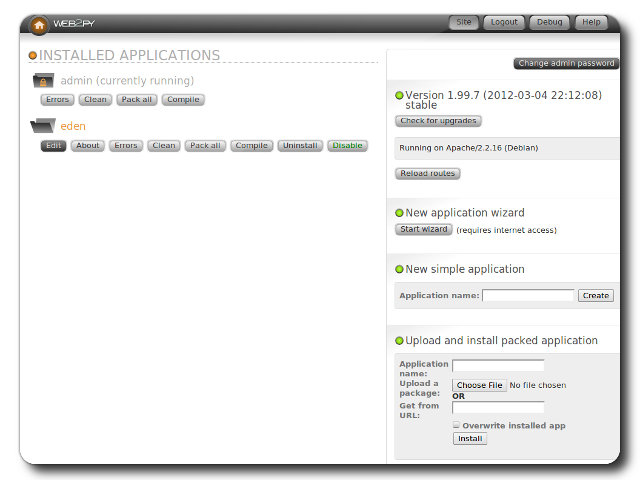
To clarify though, this isn't really web-app administration in the sense of application-specific settings. It's more about installing the eden app itself. So where then do you go to manage the app? Many web-apps have an administration portal off the customer-facing component, which is accessible after you log in. The customer-facing portal of Sahana Eden looks like this:
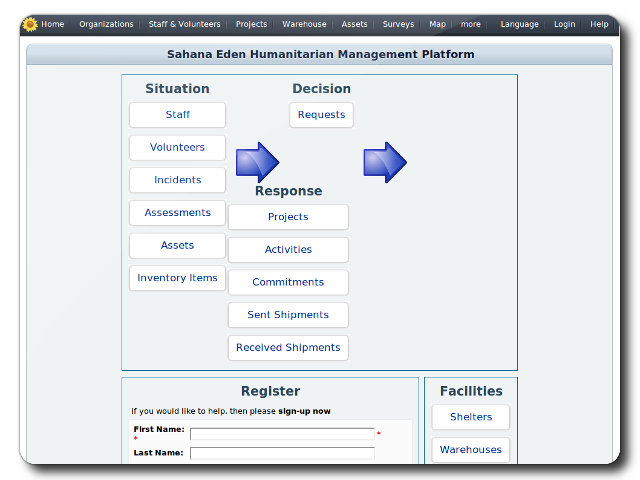
According to the turnkey linux page:
first registered user will become the administrative user account
Seems simple, right? Riiiiiiiight... Attempting to create a user resulted in a database error. That means I need to fix the database issue before I can register a user so that I can get into the web-app!
Sahana Eden's DBMS
By default, when you launch the /var/www/web2py main script, you'll see a note in the loading banner that unless otherwise specified in the config files the database management system will be sqlite3. When I checked, sqlite wasn't installed, hence the failure.
I did notice however that mysql was installed, and it happened to have an empty eden database. My guess is that the distro has the eden database in mysql preset via the web2py console. The questions then are: (1) how to point the web2py config files to use mysql instead of sqlite3, and (2) how to populate the database with what's necessary to create the admin account.
To save time, just go to the Wiki's Virtual Machine Installation Guide and scroll down to the Next Steps section. We need to modify two files:
web2py/applications/eden/models/000_config.py
web2py/applications/eden/models/zzz_1st_run.py
The config.py file has all settings necessary to point web2py to use the mysql instance, so you can make the necessary changes there (NOTE: I backed up the existing file first to have something to revert to).
The 1st_run.py file will generate the tables, etc. in the mysql instance.
After re-launching web2py, the app will now be pointed to an installed DBMS and allow you to create the user, so you can then take a look around at the app and maybe complete an inject or two. wink, wink
Good Luck!
Tuesday, February 18, 2014
Labels:
packet analysis
,
Wireshark
Packet Analysis 101 - Wireshark Display Filters
Now that you're familiar with capture filters, let's discuss display filters.
For another great cheat sheet that prints great and looks good in a binder or on your cube wall, check out PacketLife.net's Wireshark Display Filters.
While you're there, be sure to download the tcpdump cheat sheet as well! We'll be visiting PacketLife.net much more in future posts.

Read More
 |
| It's a port scan! |
Display Filters
Display filters can be applied during a live packet capture, as well as when reviewing an old packet capture like the one above (provided for the MDC3 forensics qualifying round).
See the Filter field above? That's where we build our expression to sift through the collected packets to display only those we're interested in reviewing. The syntax for these expressions is different than those discussed in the capture filters post. Here's an example of what I mean:
| Capture Filter | host 192.168.152.150 | |
|---|---|---|
| Display Filter | ip.src==192.168.152.150 |
See how much more specific display filters can be? In the example above, not only are we identifying a host, we're saying we want to view all packets where that host is the source. Using the same port scan pcap above, applying that display filter results in this:

Um, Cheat Sheets Please?
So, where do we go from here? Learn the display filters! Here are some examples to get you started:| Packets with port 443 | tcp.port==443 | |
|---|---|---|
| Packets with destination port 443 | tcp.dstport==443 | |
| HTTP GET requests | http contains GET | |
| 401 authentication challenges | http contains 401 | |
| Java user-agent strings | http.user_agent contains Java | |
| Packets to and from a host | ip.addr==192.168.152.150 | |
| SSL Certificates | ssl.handshake.certificate | |
 |
| PacketLife.net - Wireshark Display Filters |
More on Expression Syntax
In my few examples above, you may notice a pattern or two. The display filter begins with an argument identifier (ip, http, ssl, tcp) and can be used by itself or modified.
Using arguments by themselves is a great way to quickly sift through protocol-specific segments of a pcap. For instance, if I'm troubleshooting a DNS issue, all I have to type is dns in the filter and all other protocols are excluded.
These arguments have tons of modifiers. Take http for example. Open up Wireshark and type http followed by a period "." Wireshark recognizes that you're about to modify the filter argument and will show you a list of what's available.
Using arguments by themselves is a great way to quickly sift through protocol-specific segments of a pcap. For instance, if I'm troubleshooting a DNS issue, all I have to type is dns in the filter and all other protocols are excluded.
These arguments have tons of modifiers. Take http for example. Open up Wireshark and type http followed by a period "." Wireshark recognizes that you're about to modify the filter argument and will show you a list of what's available.
To see a more comprehensive (and intimidating) list of what's available, click on the "Expression..." button. Go ahead, I dare ya.
Switching Display Filters
The last piece to remember when using display filters is that after you apply your expression, you have to clear it out to go back to viewing the previously filter-excluded packets. Give it a shot. Take a packet capture, filter for http and then filter for dns.
Next up, we'll be looking at individual packets! I know you're as excited as I am...
Friday, January 31, 2014
Labels:
packet analysis
,
Wireshark
Packet Analysis 101 - Wireshark Capture Filters
We're going to first discuss one of the two types of filtering available with Wireshark: capture filters. Before I go any further, if you're confused about what filters are and/or what Wireshark is, check out my first blog post to learn how to take a packet capture.

To set a capture filter, look for the Capture Options button on the left side underneath the interface listing. In the pop-up window, look for the Capture Filter option on the left and when you click it you'll see the short list of pre-defined capture filters.

You can select one of the templates and modify it to target the data you're hunting/troubleshooting.
Note the other parameters you can set, such as a time or size limit. When you modify a filter template or enter your own expression (based on those allowed), until it's in the proper syntax, Wireshark will highlight the Capture Filter field in red. Once you set the capture filter and click Start, Wireshark will begin monitoring the chosen interface using that capture criteria.
It's important to note that the capture filters are a different syntax than the display filters, and they're based on tcpdump filters. Check out a list of some sample capture filters.
When you open the capture filter list again, your new entry will be there! As I collect use cases for capture filters, I'll post a page with an index for easy reference.
Next up, we'll be discussing display filters.
Read More
Capture Filters
An often underused (where's the love?) component of Wireshark is the capture filter. Most people fire up Wireshark, select an interface and start capturing everything. That's great unless you have a scenario where you need to leave a capture running for a long period of time and/or have to sift through a huge amount of packets. Side note: This is also extremely handy in the Capture the Packet CTF.
To set a capture filter, look for the Capture Options button on the left side underneath the interface listing. In the pop-up window, look for the Capture Filter option on the left and when you click it you'll see the short list of pre-defined capture filters.
You can select one of the templates and modify it to target the data you're hunting/troubleshooting.
 |
| Selecting the template |
 |
| Changing the default value from "192.168.0.1" to 172.16.90.101 |
It's important to note that the capture filters are a different syntax than the display filters, and they're based on tcpdump filters. Check out a list of some sample capture filters.
Create Your Own Capture Filter
To create your own filter, when you have the Capture Filter pop-up open, click on New. Change the Filter name and Filter string fields to the values you want, and click OK. |
| This example looks for HTTP GET requests, excerpted from the Wireshark Capture Filter wiki page |
Next up, we'll be discussing display filters.
Tuesday, January 28, 2014
Labels:
packet analysis
Ten years ago, when someone couldn't check their email or perform a web-based task, it was always a question of whether the server was actually receiving power. These days, servers have drastically increased their availability so that server-specific outages have become rare. That fact means the blame when an application doesn't work typically falls on a device in the network boundary, and more often than not, the proxy and/or firewall.
So, how do you figure out where to target your efforts if your network looks like this?
Read More
Packet Analysis 101 - Initiating the Capture
Let's Look at the Packets!
How often have you heard, "This application isn't working. Is it the [IPS/IDS/Proxy/Firewall] again?"Ten years ago, when someone couldn't check their email or perform a web-based task, it was always a question of whether the server was actually receiving power. These days, servers have drastically increased their availability so that server-specific outages have become rare. That fact means the blame when an application doesn't work typically falls on a device in the network boundary, and more often than not, the proxy and/or firewall.
So, how do you figure out where to target your efforts if your network looks like this?
 |
| Only a slight exaggeration... |
Obviously there are other elements to troubleshoot, but it's often helpful and sometimes required to take a packet capture.
What is a Packet?
A packet is a binary package (001010101010) of information capable of being transmitted across the network from one device to another. We'll get into some specific examples in later posts. Packets have multiple layers, often referred to in sections as headers and footers. The headers contain transmission-related information with the footer containing the application data.
A common reference for packet header analysis is the SANS TCP/IP and tcpdump cheat sheet. The image below shows excerpts including the Ethernet header (OSI Layer 2), the IP header (OSI Layer 3), and the TCP header (OSI Layer 4).
 |
| TCP/IP headers from SANS, with Ethernet added by me |
Notice how I arranged the header in layers. These layers follow the abstract, but logical, OSI model. It's also helpful to recognize them this way when you analyze packets from a capture.
What is a Packet Capture?
A packet capture is exactly what it sounds like, although some people refer to it as "packet sniffing". It's a collection of network packets transmitted by and/or between any number of combinations of such devices as those in the nightmare diagram above. The next logical question is...
How do I Capture Packets?
People more commonly ask, "How do I take a packet capture?" To do so, we need a tool. For the express purpose of capturing packets, several are available including: Wireshark (my fav), Network Miner, NetWitness Investigator (Direct Download Link), Microsoft Network Monitor, and Capsa. They all have unique attributes and capabilities, so I suggest experimenting with them to find out which one you prefer.
To get you started, our friends over at Hak5's YouTube channel made a great introductory video using Wireshark:
Although there are video tutorials on the other tools, those videos focus more on the use of the tool rather than initiating a capture using the tool. If I find them, I'll post them, but in the mean time check out Wireshark!
Sunday, January 12, 2014
Labels:
HTTPS
,
SSL
HTTPS, SSL, and [Perfect] Forward Secrecy
The events of 2013 have raised awareness about the capability to eavesdrop on Internet conversations many thought were protected from eavesdropping. There are many articles about HTTPS, SSL, and [Perfect] Forward Secrecy, but I've found that none really reference the information in a visual way. Since we're all primarily visual creatures, I think it would be helpful to some to post a more visual-oriented reference to this discussion.
The Basics
First, a review of the OSI model. This model sets out a visual representation of what happens when information is transmitted from one system to another, such as when your home computer, laptop, or tablet loads a web page. Think of the OSI model as an information workflow process that systems use to either receive data or send it out. The model is organized into 7 layers, depicted here:

The mechanisms of HTTPS, SSL, and Perfect Forward Secrecy take place at the top three layers: Application, Presentation, and Session. More specifically, and for the sake of simplification, we'll say they happen at the Application and Session layers.
When you sit down at your machine and are ready to perform some online banking or shopping, this is what typically happens. You type in your bank's website, and your machine sends an HTTP request to the banking or ecommerce site.

It's at this stage where the bank or ecommerce site will send a redirect message to your browser (Internet Explorer, Chrome, Firefox, etc) providing instructions to contact the server back using an HTTPS request. Let's narrow our scope down on that part of the conversation:

When communicating sensitive information such as banking (account numbers) or ecommerce (credit card numbers), we don't want that data to be passed "in the clear" because someone could easily see what we're typing. Banks and retail stores don't want to be held accountable for letting someone steal your data, so they attempt to secure the communication when you access the portal. That's why in the graphic above, when you send a "clear text" request, the organization's server will typically send your browser an instruction to send a new request in a secure way. The browser knows where that new location is via the location response header.
Now our browser will begin secure communication negotiation with the banking or ecommerce server. Before the browser sends the request for the web page again, it establishes an agreed-upon secure communication method with the server.

Notice how in the graphic above I only focus on the SSL part of the conversation? It's important to note that SSL is independent of the HTTP application protocol. You can send other types of traffic over SSL such as File Transfer Protocol, Internet Content Adaptation Protocol, and Simple Mail Transfer Protocol. When we think of our banking and ecommerce sites, we always see the https, which is HTTP over SSL. Below is an illustration, using the same example above:

The Details
Now on to [Perfect] Forward Secrecy. What exactly does it mean, and why do I bracket out the "Perfect"? Perfect Forward Secrecy (PFS) is a level up from Forward Secrecy (FS), and both are improved where no implementation at all is used.
How do they protect the encrypted traffic? Using the Diffie-Hellman exchange, they ensure that the keys exchanged between "Home PCs" and servers are done so in a secure manner. It's a psuedo-randomization of the session key so that the asymmetric keys can be exchanged.
To clarify, in the picture above where we see the SSL session established, without using PFS or FS the server would not randomize the keys, using the same keys in conversations with however many "Home PCs" wanted to communicate.
The danger of handling encryption/decryption of SSL messages this way is that if the private key is compromised in anyway, all traffic collected using this keyring could then be decrypted.
Using Forward Secrecy, each conversation with each different "Home PC" would use the Diffie Hellman algorithm set to generate random session keys to determine the secure key exhange of the RSA keyring. Because the key exchange mechanism is different per "Home PC", gaining access to the private RSA key would have to be run through the Diffie-Hellman algorithm to find the key exchange used for each session.

Now, running the recovered (hacked?) private key along with the Diffie-Hellman algorithm would only reveal communication between that one "Home PC" the key was cracked for and the server.
And lastly, Perfect Forward Secrecy uses different session keys within the same conversation with each "Home PC" so that multiple keys are used per conversation:

So, what does this mean in terms of security?
We eliminate the capability of someone without key-breaking tools to eavesdrop when we switch from HTTP to HTTPS. SSL without PFS or FS means that if someone is able to crack the key used, then they have access to all conversations between that server and all systems with which it communicates. SSL with Forward Secrecy operations prevent all conversations from being monitored by the cracking of one key, but if someone does crack that key, then they would get access to all conversations between that server and one endpoint. Finally, SSL with Perfect Forward Secrecy ratchets up the difficulty even more, because now an eavesdropper must crack multiple keys within a single conversation.
The focus here is the number of keys involved, and increasing the number of keys increases the time it takes to break those keys.
Self Assessment
So, how can you test if a website uses forward secrecy or perfect forward secrecy? Check out Qualys' SSL Labs. When you run a report on a domain, there's a check to see if it supports Forward Secrecy. Since there was a recent article about Yahoo enabling HTTPS by default for its mail service, let's run a report:

Looks like Yahoo isn't there yet. How about GMail?
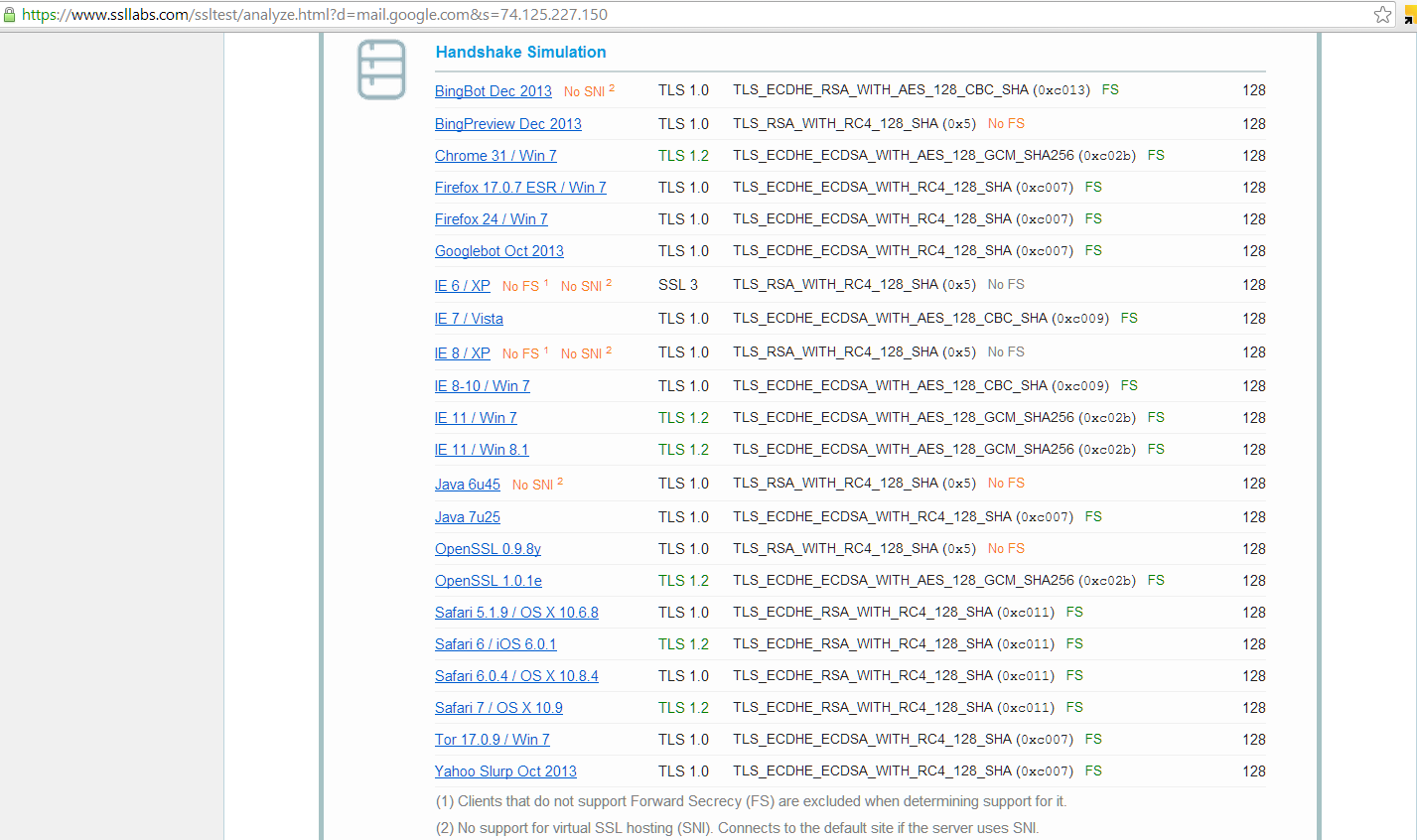
What's the main hesitation and why wasn't it already implemented? Performance. By increasing the number of keys, we're adding more overhead to the server. In spite of that, I think we can safely predict that this is a feature that will be gaining steam in 2014.
Reference:
http://news.netcraft.com/archives/2013/06/25/ssl-intercepted-today-decrypted-tomorrow.html
Read More
The Basics
First, a review of the OSI model. This model sets out a visual representation of what happens when information is transmitted from one system to another, such as when your home computer, laptop, or tablet loads a web page. Think of the OSI model as an information workflow process that systems use to either receive data or send it out. The model is organized into 7 layers, depicted here:
The mechanisms of HTTPS, SSL, and Perfect Forward Secrecy take place at the top three layers: Application, Presentation, and Session. More specifically, and for the sake of simplification, we'll say they happen at the Application and Session layers.
When you sit down at your machine and are ready to perform some online banking or shopping, this is what typically happens. You type in your bank's website, and your machine sends an HTTP request to the banking or ecommerce site.
It's at this stage where the bank or ecommerce site will send a redirect message to your browser (Internet Explorer, Chrome, Firefox, etc) providing instructions to contact the server back using an HTTPS request. Let's narrow our scope down on that part of the conversation:
When communicating sensitive information such as banking (account numbers) or ecommerce (credit card numbers), we don't want that data to be passed "in the clear" because someone could easily see what we're typing. Banks and retail stores don't want to be held accountable for letting someone steal your data, so they attempt to secure the communication when you access the portal. That's why in the graphic above, when you send a "clear text" request, the organization's server will typically send your browser an instruction to send a new request in a secure way. The browser knows where that new location is via the location response header.
Now our browser will begin secure communication negotiation with the banking or ecommerce server. Before the browser sends the request for the web page again, it establishes an agreed-upon secure communication method with the server.
Notice how in the graphic above I only focus on the SSL part of the conversation? It's important to note that SSL is independent of the HTTP application protocol. You can send other types of traffic over SSL such as File Transfer Protocol, Internet Content Adaptation Protocol, and Simple Mail Transfer Protocol. When we think of our banking and ecommerce sites, we always see the https, which is HTTP over SSL. Below is an illustration, using the same example above:
The Details
Now on to [Perfect] Forward Secrecy. What exactly does it mean, and why do I bracket out the "Perfect"? Perfect Forward Secrecy (PFS) is a level up from Forward Secrecy (FS), and both are improved where no implementation at all is used.
How do they protect the encrypted traffic? Using the Diffie-Hellman exchange, they ensure that the keys exchanged between "Home PCs" and servers are done so in a secure manner. It's a psuedo-randomization of the session key so that the asymmetric keys can be exchanged.
To clarify, in the picture above where we see the SSL session established, without using PFS or FS the server would not randomize the keys, using the same keys in conversations with however many "Home PCs" wanted to communicate.
 |
| NOTE: The "same" key is depicted above via the color purple |
The danger of handling encryption/decryption of SSL messages this way is that if the private key is compromised in anyway, all traffic collected using this keyring could then be decrypted.
Using Forward Secrecy, each conversation with each different "Home PC" would use the Diffie Hellman algorithm set to generate random session keys to determine the secure key exhange of the RSA keyring. Because the key exchange mechanism is different per "Home PC", gaining access to the private RSA key would have to be run through the Diffie-Hellman algorithm to find the key exchange used for each session.
Now, running the recovered (hacked?) private key along with the Diffie-Hellman algorithm would only reveal communication between that one "Home PC" the key was cracked for and the server.
And lastly, Perfect Forward Secrecy uses different session keys within the same conversation with each "Home PC" so that multiple keys are used per conversation:
So, what does this mean in terms of security?
We eliminate the capability of someone without key-breaking tools to eavesdrop when we switch from HTTP to HTTPS. SSL without PFS or FS means that if someone is able to crack the key used, then they have access to all conversations between that server and all systems with which it communicates. SSL with Forward Secrecy operations prevent all conversations from being monitored by the cracking of one key, but if someone does crack that key, then they would get access to all conversations between that server and one endpoint. Finally, SSL with Perfect Forward Secrecy ratchets up the difficulty even more, because now an eavesdropper must crack multiple keys within a single conversation.
The focus here is the number of keys involved, and increasing the number of keys increases the time it takes to break those keys.
Self Assessment
So, how can you test if a website uses forward secrecy or perfect forward secrecy? Check out Qualys' SSL Labs. When you run a report on a domain, there's a check to see if it supports Forward Secrecy. Since there was a recent article about Yahoo enabling HTTPS by default for its mail service, let's run a report:
Looks like Yahoo isn't there yet. How about GMail?
What's the main hesitation and why wasn't it already implemented? Performance. By increasing the number of keys, we're adding more overhead to the server. In spite of that, I think we can safely predict that this is a feature that will be gaining steam in 2014.
Reference:
http://news.netcraft.com/archives/2013/06/25/ssl-intercepted-today-decrypted-tomorrow.html
Tuesday, October 22, 2013
Labels:
firewalls
,
malware
I was reading an interesting article over on LifeHacker attempting to make the case that outbound firewalls are worthless. For those that don't know what an outbound firewall does, its purpose is to block programs from making internet-bound connections without your approval. The Windows firewall presents something similar to the image below when this occurs:


Read More
Outbound Firewalls: Prevention is the Cure
Are "Outbound Firewalls" worth it? (Short answer, yes)
I was reading an interesting article over on LifeHacker attempting to make the case that outbound firewalls are worthless. For those that don't know what an outbound firewall does, its purpose is to block programs from making internet-bound connections without your approval. The Windows firewall presents something similar to the image below when this occurs:
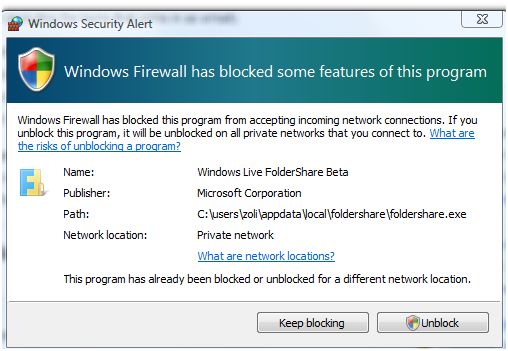 |
| Image Credit: zolierdos |
The main point of such operations, if you think about it from a perspective on trying to control malware, would be to block the malware from making a connection to the Internet without your knowledge. This assumes that you've already gone through the stage of visiting a compromised link, resulting in the installation of malware on your machine. Blocking malware at that stage is reactive, not proactive. See below for the associated illustration of this process:
Instead of waiting until that point, why not prevent it in the first place?
That's where prevention works in your favor. By preventing your browser from sending a request for that compromised or malicious link in the first place, you reduce the likelihood of infection.
Does that prevent you from getting infected from borrowing someone's malware-infested USB drive? Of course not. If you do have this prevention mechanism, and if you get infected from another vector such as the USB drive, then unless the prevention method is circumvented the malware will still get blocked when phoning home to its command and control servers. It's at this stage that the prevention mechanism would operate similar to a firewall blocking outbound Internet connections from untrusted programs.
Sold! Now what do I do?
There are many programs that performs this prevention aspect. Most "Internet Security Suites" from vendors such as McAfee, Kaspersky, and Trend Micro have web browser plug-ins that analyze each URL (website link) individually and will block known bad URLs. In my opinion though, to know that a link is bad requires one of two analyses:
1) Someone visited the link and became infected, at which point the vendor program detected the infection and reported the URL back to the vendor mothership for distribution to all other endpoints so those other endpoints are now protected.
2) A brand new malware link is established that no vendor has seen before. A vendor program installed for protection analyzes the content on this brand new link and dynamically assigns a threat analysis, blocking its access.
In this way, link analysis becomes very similar to virus detection. Look for the known bad (signatures), and identify the potentially bad (heuristics).
My favorite prevention software in this aspect is Blue Coat's K9 software. It's essentially a proxy agent that sits on your machine monitoring all outbound requests for content, and will block access to a site using both "signatures" and "heuristics" styles of link analysis. This isn't to say that other vendor programs don't have that capability, I've just had more familiarity with the K9 software.
If anyone would like me to post a complete review of K9, please let me know.
To be clear, I'm not advocating such URL analysis tools over outbound firewalls. I think they should be considered another layer of defense. Let them catch the majority of "bad" requests to prevent what they can, and still keep the outbound firewall active in case an unknown program is detected making an outbound connection attempt. Also note that these days many malware authors attempt to hide the outbound connection attempts through other means so these may not get detected by the outbound firewall, but it's still worth keeping around.
Subscribe to:
Posts
(
Atom
)


